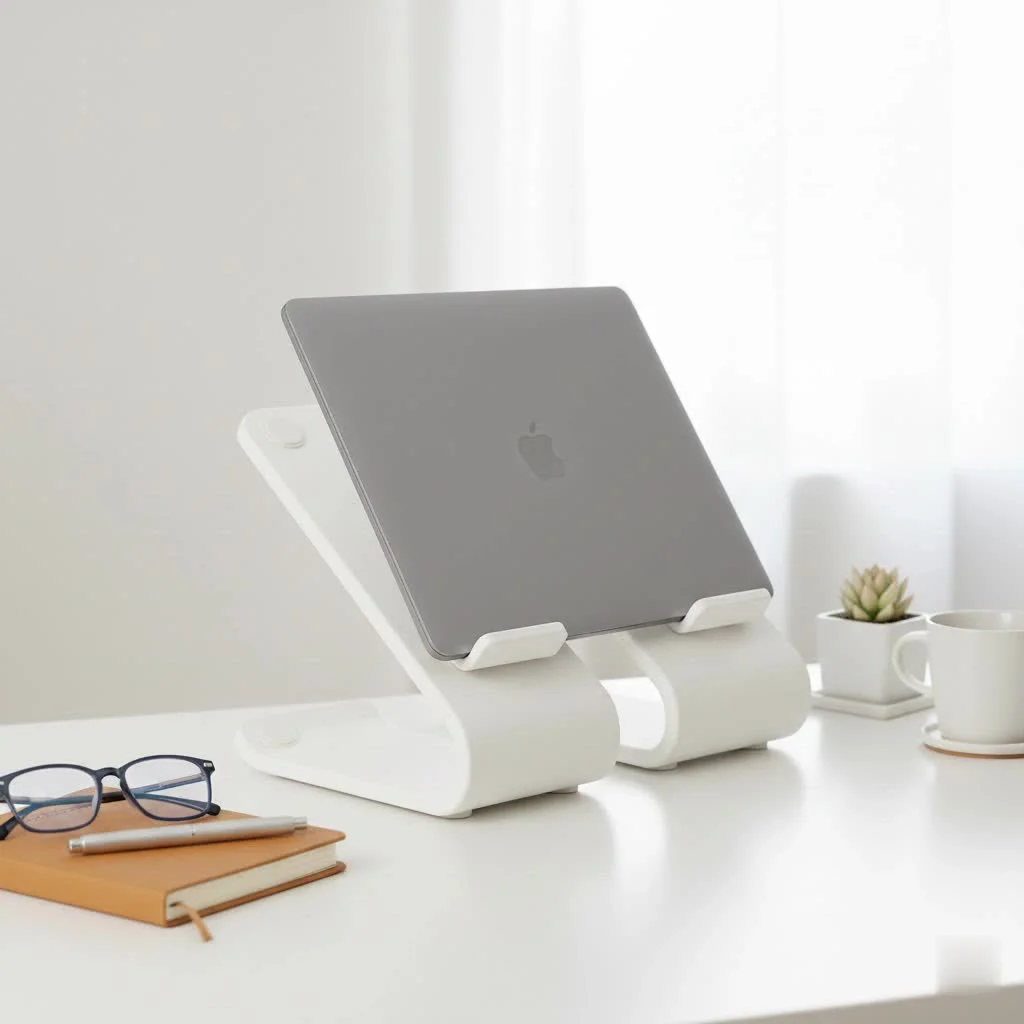
A laptop stand with docking station is an all-in-one solution that combines ergonomic elevation for your screen with powerful port expansion for your laptop, connecting all peripherals and charging your device via a single cable. This integration significantly enhances productivity and well-being by reducing cable clutter and improving posture. It’s ideal for hybrid work environments, offering a streamlined and efficient workspace.
As the creative force behind wweaw.com, I’ve spent over a decade analyzing, testing, and designing ergonomic solutions. I’ve seen firsthand how the right gear can transform not just your desk, but your entire workday. This guide will distill that experience to help you understand, choose, and master the integrated stand and dock.
What Exactly is a Laptop Stand with a Docking Station?
Think of it as the ultimate evolution of two essential desk accessories. It combines the ergonomic benefits of a laptop stand, which elevates your screen to eye level, with the powerful connectivity of a docking station, which expands your laptop’s ports. Instead of having two separate devices cluttering your desk, you get one sleek unit that handles everything. With a single cable connection to your laptop, this device can charge it, connect it to multiple monitors, and link it to all your accessories like keyboards, mice, and external drives.
The Triple-Threat Benefits: Why You Need One
Integrating a dock into a stand isn’t just a gimmick; it’s a synergy that unlocks three core advantages for any laptop user.
Unbeatable Ergonomics
The primary function of any laptop stand is to fix your posture. Laptops are notoriously bad for ergonomics because the screen and keyboard are attached. If the keyboard is in a comfortable position, the screen is too low, forcing you to crane your neck down. If the screen is at eye level, the keyboard is too high.
A stand solves this by raising the screen, allowing you to sit up straight and look forward, aligning your spine and reducing strain on your neck and shoulders. This simple adjustment can prevent chronic pain and boost your comfort and focus over long work sessions.
One-Cable Simplicity: The Power of Integrated Docks
This is where the magic happens. A modern laptop stand with docking station typically connects to your computer via a single USB-C or Thunderbolt cable. This one cable does it all:
- Power Delivery: It charges your laptop, eliminating the need for its original power brick.
- Video Output: It sends the video signal to one or more external monitors.
- Data Transfer: It connects all your peripherals—external keyboard, mouse, webcam, headset, and USB drives—at high speed.
Imagine coming to your desk, plugging in one cable, and having your entire workstation instantly come to life. When it’s time to leave, you just unplug that same cable. It’s the peak of convenience.
A Clutter-Free Workspace
|
Our Picks for the Best Laptop Stand in 2026
As an Amazon Associate I earn from qualifying purchases.
|
||
| Num | Product | Action |
|---|---|---|
| 1 | OMOTON 360° Rotating Laptop Stand Riser for Desk, Ergonomic Foldable Computer Stand Adjustable Height Angles for Collaborative Work, Easy Storage Fit Macbooks,All Laptops up to 16 inches, Silver |

|
| 2 | Lamicall Adjustable Laptop Stand, Portable Laptop Riser, Aluminum Laptop Stand for Desk Foldable, Ergonomic Computer Notebook Stand Holder for MacBook Air Pro, Dell XPS, HP (10-17.3\'\') - Silver |
|
| 3 | acer Laptop Stand for Desk - with 360 Swivel Base, Rotating Laptop Riser for Desk, Adjustable Computer Stand for Laptops, Ergonomic Riser Holder Foldable, Portable MacBook Pro Air (10-16\") - Silver |
|
| 4 | Adjustable Laptop Stand for Desk, Metal Foldable Laptop Riser Holder, Portable Desktop Book Stands, Ventilated Cooling Computer Notebook Stand Compatible with 10-15.6” Laptops |
|
| 5 | tounee Telescopic Laptop Stand for Desk with 360° Swivel Base, Sit to Stand, Height Adjustable, Portable Riser Holder for Good Posture, Compatible with MacBook Pro, All Laptops 10-17\"-Gray |
|
| 6 | Amazon Basics Sturdy and Portable Ergonomic Laptop Stand for Desk, Height Adjustable Riser with Ventilated Cooling, Foldable, Fits all Laptops up to 17.3 Inch, Silver, 10 x 8.7 x 6 in |
|
| 7 | BESIGN LS03 Aluminum Laptop Stand, Ergonomic Detachable Computer Stand, Notebook Riser Compatible with Air, Pro, Dell, HP, Lenovo More 10-15.6\" Laptops, Silver |
|
| 8 | Laptop Stand for Desk, Adjustable Laptop Riser ABS+Silicone Foldable Portable Notebook Holder, Ventilated Cooling Notebook Mount Computer Stand for 10-15.6” Laptops,Tablets-Black |
|
| 9 | BESIGN LS03 Aluminum Laptop Stand, Ergonomic Detachable Computer Stand, Riser Holder Notebook Stand Compatible with Air, Pro, Dell, HP, Lenovo More 10-15.6\" Laptops, Black |
|
| 10 | Adjustable Laptop Stand, Computer Stand with 360 Rotating Base, Ergonomic Laptop Riser Mount for Desk Foldable Protable Computer Desk Fits with MacBook Pro Air (10-16\") - Black |
|
By combining two devices into one and reducing your main connection to a single cable, this solution is the ultimate weapon against desk clutter. It gets rid of the “cable spaghetti” that plagues so many workspaces. With all the ports neatly organized at the base of the stand, cable management becomes effortless, leaving you with a clean, organized, and inspiring desk.
“A streamlined physical environment directly contributes to a streamlined mental one. When you remove clutter and simplify connections, you’re not just organizing cables; you’re removing friction from your workflow, which frees up cognitive resources for more important tasks.” – Dr. Alistair Finch, Ergonomics and Productivity Specialist
How to Choose the Perfect Laptop Stand with Docking Station
Not all integrated stands are created equal. Making the right choice depends entirely on your specific equipment and needs. Here’s what to look for.
Check Your Connections: Ports and Compatibility
The most critical factor is ensuring the dock has the ports you need and is compatible with your laptop.
- Host Connection: Does your laptop have a USB-C or Thunderbolt 3/4 port that supports video output (DisplayPort Alternate Mode) and Power Delivery? Most modern laptops do, but always check your device’s specifications.
- Video Ports: How many monitors do you use, and what connections do they have? Look for a dock with the right combination of HDMI and DisplayPort outputs to match your setup.
- USB Ports: Count how many USB devices you use. Ensure the dock has enough USB-A ports for older devices (keyboards, mice) and USB-C ports for modern ones (fast external drives).
- Other Ports: Do you need an Ethernet port for a stable internet connection? An SD card reader for photography? An audio jack for wired headphones? Make a list of your must-haves.
Power and Display: Driving Your Monitors
Simply having the right ports isn’t enough; they need to perform to your standards.
- Power Delivery (PD): Check the wattage (W) of the dock’s power output. It needs to match or exceed the power your laptop requires. A 65W laptop will need a dock that provides at least 65W PD to charge effectively while in use.
- Monitor Support: This is crucial for users with high-resolution displays. Check the dock’s specifications to see what it supports. For example, can it run a single 4K monitor at a smooth 60Hz, or can it support two 4K monitors at 30Hz? If you’re a gamer or video editor, refresh rate is key.
Build Quality and Adjustability
Since this device will be holding your expensive laptop, it needs to be sturdy and reliable.
- Materials: Look for stands made from high-grade aluminum or steel. They offer better stability and heat dissipation than plastic models.
- Adjustability: Can you adjust the height and angle of the stand? A highly adjustable stand allows you to dial in the perfect ergonomic position for your unique height and desk setup.
- Weight Capacity: Ensure the stand is rated to support the size and weight of your laptop, especially if you have a larger 16-inch or 17-inch model.
Setting Up Your New Workstation
Once you have your new stand, setting it up is straightforward.
- Position the Stand: Place the stand on your desk so that when your laptop is on it, the top of the screen is at or slightly below your eye level.
- Connect Peripherals: Plug all your devices—monitors, keyboard, mouse, etc.—into the ports on the back of the docking station.
- Power Up: Connect the docking station’s power adapter to the wall. The dock must have its own power source to charge your laptop and run all the peripherals.
- The Final Connection: Use the main USB-C or Thunderbolt cable to connect the dock to your laptop.
- Enjoy: Your entire setup should now be active. You have an ergonomic view, a connected workspace, and a clutter-free desk.
Frequently Asked Questions (FAQ)
Can any laptop use a stand with a docking station?
No, it depends on the laptop’s ports. For full functionality (video, data, and power), your laptop needs a USB-C or Thunderbolt port that supports DisplayPort Alternate Mode and Power Delivery. Always check your laptop’s specs before buying.
Will a docking station stand charge my laptop?
Yes, most are designed to. You must verify that the stand’s Power Delivery (PD) wattage is sufficient for your laptop model. Underpowered docks may charge slowly or not at all under heavy use.
How many monitors can I connect?
This varies widely between models. Some basic models may only support one external monitor, while high-end Thunderbolt docks can support two or even three high-resolution displays. The exact number, resolution, and refresh rate capabilities will be listed in the product specifications.
Are these stands portable?
Generally, no. A laptop stand with a docking station is designed to be the centerpiece of a stationary desk setup. Its weight and the need for its own power supply make it less than ideal for travel. For portability, a separate, foldable laptop stand is a better option.
Is a laptop stand with a docking station worth it?
If you regularly use your laptop at a desk with an external monitor and other accessories, it is absolutely worth it. The combined benefits of improved ergonomics, supreme convenience, and a clean workspace provide a massive boost to comfort and productivity that far outweighs the cost.
Reclaim Your Desk and Your Posture
The laptop stand with docking station isn’t just an accessory; it’s a fundamental upgrade to your workspace. It solves three of the biggest problems modern laptop users face: poor ergonomics, cable clutter, and the constant hassle of connecting devices. By investing in the right integrated solution, you’re not just buying a piece of hardware—you’re investing in your health, efficiency, and daily comfort. Take the time to assess your needs, choose a model that fits your workflow, and get ready to improve your desk into the streamlined command center you’ve always wanted.
Frequently Asked Questions
Can any laptop use a stand with a docking station?
No, not all laptops are compatible. For full functionality, including video, data, and power, your laptop requires a USB-C or Thunderbolt port that supports DisplayPort Alternate Mode and Power Delivery. Always verify your specific laptop's specifications before purchasing a stand with a docking station.
Will a docking station stand charge my laptop effectively?
Yes, most docking station stands are designed to charge your laptop. However, it is crucial to confirm that the stand's Power Delivery (PD) wattage meets or exceeds your laptop's power requirements. An underpowered dock, for example, one providing only 30W for a 65W laptop, may charge slowly or fail to charge under heavy use.
How many external monitors can I connect to a docking station stand?
The number of external monitors you can connect varies significantly by model. Basic docking stands might support only one external display, while high-end Thunderbolt docks can support two or even three high-resolution monitors. Always check the product specifications for exact numbers, supported resolutions (e.g., 4K), and refresh rates (e.g., 60Hz).
Are laptop stands with integrated docking stations suitable for travel?
Generally, no, laptop stands with integrated docking stations are not designed for portability. They are typically heavier and require their own power supply, making them ideal for a stationary desk setup. For frequent travel, a separate, lightweight, and foldable laptop stand is a more practical option.
Is investing in a laptop stand with a docking station a worthwhile upgrade?
Yes, if you regularly use your laptop at a desk with an external monitor and multiple accessories, it is absolutely worth the investment. The combined benefits of improved ergonomics, supreme convenience from a single-cable connection, and a significantly cleaner workspace provide a massive boost to comfort and productivity that far outweighs the cost.
Set Up Your Laptop Stand with Docking Station
Follow these steps to quickly set up your new laptop stand with an integrated docking station for an ergonomic and clutter-free workspace.
Place the stand on your desk. Ensure that when your laptop is on it, the top of the screen is at or slightly below your eye level for optimal ergonomics.
Plug all your external devices, such as monitors, keyboard, mouse, and any other USB accessories, into the available ports on the back or sides of the docking station.
Connect the docking station's dedicated power adapter to a wall outlet. The dock requires its own power source to charge your laptop and operate all connected peripherals effectively.
Use the main USB-C or Thunderbolt cable provided with the docking station to connect it to your laptop. This single cable will handle power, video, and data transfer.
Your entire workstation should now be active and fully connected. Experience the benefits of an ergonomic viewing angle, a streamlined workspace, and reduced cable clutter.
Get our weekly buyer guide
Practical specs, not advice. Unsubscribe anytime.

I finally pulled the trigger on one of these integrated stands after seeing them pop up everywhere. The single-cable connection for all my peripherals is a game-changer for my hybrid work setup. My desk used to be a total mess of wires, but now it’s so clean and organized. Plus, the ergonomic height has really helped with my neck pain.
I got a stand with a docking station, and while the port expansion is great for my older laptop, I wish it had more USB-C ports. Most of my newer accessories use USB-C, so I still need an extra adapter. It’s a minor inconvenience, but something to consider if you’re heavily invested in USB-C devices.
I was hesitant about the price point for some of the higher-end models, but honestly, it’s worth every penny. The combination of ergonomic elevation and powerful port expansion has transformed my home office. My productivity has definitely increased, and I feel much more comfortable during long work sessions.
This type of setup is perfect for anyone looking to improve their posture and reduce cable clutter. I appreciate how it charges my device while also connecting my monitor and keyboard. It’s made my workspace much more efficient, especially since I’m constantly moving my laptop between home and the office.