In the modern workspace, the line between portability and power is constantly blurring. Your laptop is a powerhouse, but hunched over its small screen with a tangle of adapters is a recipe for discomfort and inefficiency. This is where the ultimate desk setup power-couple comes in: the laptop stand and docking station. This integrated solution doesn’t just elevate your device; it elevates your entire workflow, combining peak ergonomic comfort with seamless, single-cable connectivity.
As the founder of Wweaw.com and a decade-long veteran in workspace optimization, I’ve seen countless professionals struggle to create a setup that is both productive and healthy. The solution is simpler than you think. An integrated laptop stand with a built-in docking station is the key to unlocking a cleaner, more powerful, and ergonomically sound workspace. Let’s dive into how this single piece of hardware can completely transform your desk.
What is a Laptop Stand and Docking Station Combo?
At its core, a laptop stand and docking station is a hybrid device that solves two of the biggest problems laptop users face: poor posture and a lack of ports. Let’s break down the two components.
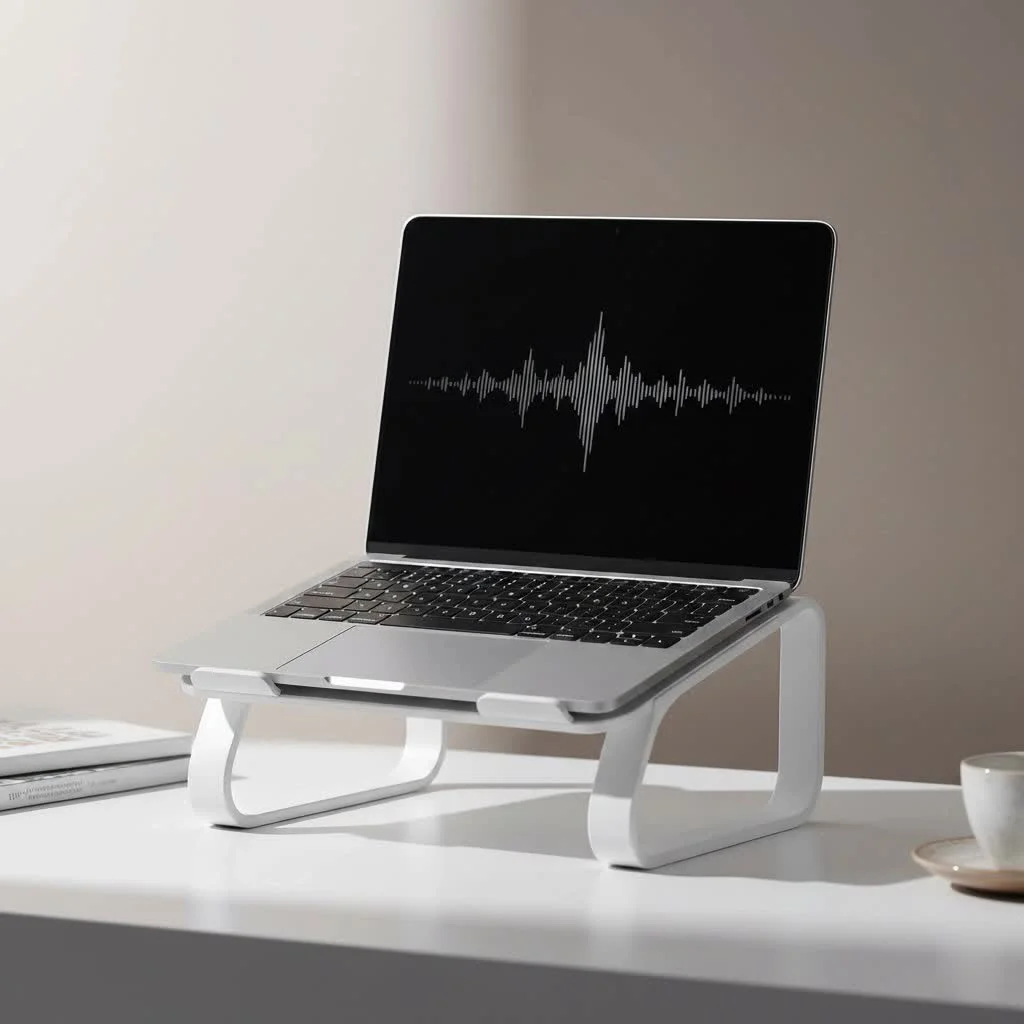
- The Laptop Stand: Its primary job is ergonomics. By lifting your laptop screen to eye level, it prevents you from slouching. This simple adjustment helps maintain a neutral spine position, significantly reducing the risk of neck, shoulder, and back pain that is all too common with prolonged laptop use.
- The Docking Station: This is the connectivity hub. Modern laptops, in their quest for thinness, have sacrificed essential ports. A docking station brings them back, and then some. It’s a central block equipped with a variety of ports—USB-A, HDMI, DisplayPort, Ethernet, SD card readers, and audio jacks—that connects to your laptop via a single USB-C or Thunderbolt cable.
When you combine these two, you get a single, elegant device that serves as the heart of your desktop setup. You place your laptop on the stand, plug in one cable, and instantly connect to your monitors, keyboard, mouse, external drives, and even a stable wired internet connection, all while charging your device.
The Core Benefits: Why You Absolutely Need One
Integrating a laptop stand with a docking station isn’t just a minor upgrade; it’s a fundamental improvement to your daily routine. The benefits extend from your physical health to your professional productivity.
Superior Ergonomics for Health and Comfort
Hunching over a laptop is a leading cause of musculoskeletal issues. An integrated stand forces you into a better posture by aligning the top of your screen with your eye level. This encourages you to sit up straight, relieving strain on your neck and back.
“The ‘laptop hunch’ is a serious ergonomic hazard we’re seeing more frequently,” notes Dr. Elena Vance, a specialist in occupational ergonomics. “Raising the screen to eye level is the single most effective change a person can make. Combining this with the ability to use a full-size keyboard and mouse at elbow height creates a truly sustainable and comfortable workspace.”
Unmatched Connectivity: One Cable to Rule Them All
|
Our Picks for the Best Laptop Stand in 2026
As an Amazon Associate I earn from qualifying purchases.
|
||
| Num | Product | Action |
|---|---|---|
| 1 | OMOTON 360° Rotating Laptop Stand Riser for Desk, Ergonomic Foldable Computer Stand Adjustable Height Angles for Collaborative Work, Easy Storage Fit Macbooks,All Laptops up to 16 inches, Silver |

|
| 2 | BESIGN LS03 Aluminum Laptop Stand, Ergonomic Detachable Computer Stand, Notebook Riser Compatible with Air, Pro, Dell, HP, Lenovo More 10-15.6\" Laptops, Silver |
|
| 3 | Adjustable Laptop Stand for Desk, Metal Foldable Laptop Riser Holder, Portable Desktop Book Stands, Ventilated Cooling Computer Notebook Stand Compatible with 10-15.6” Laptops |
|
| 4 | Laptop Stand for Desk, Adjustable Laptop Riser ABS+Silicone Foldable Portable Notebook Holder, Ventilated Cooling Notebook Mount Computer Stand for 10-15.6” Laptops,Tablets-Black |
|
| 5 | acer Laptop Stand for Desk - with 360 Swivel Base, Rotating Laptop Riser for Desk, Adjustable Computer Stand for Laptops, Ergonomic Riser Holder Foldable, Portable MacBook Pro Air (10-16\") - Silver |
|
| 6 | Lamicall Adjustable Laptop Stand, Portable Laptop Riser, Aluminum Laptop Stand for Desk Foldable, Ergonomic Computer Notebook Stand Holder for MacBook Air Pro, Dell XPS, HP (10-17.3\'\') - Silver |
|
| 7 | Adjustable Laptop Stand, Computer Stand with 360 Rotating Base, Ergonomic Laptop Riser Mount for Desk Foldable Protable Computer Desk Fits with MacBook Pro Air (10-16\") - Black |
|
| 8 | BESIGN LS03 Aluminum Laptop Stand, Ergonomic Detachable Computer Stand, Riser Holder Notebook Stand Compatible with Air, Pro, Dell, HP, Lenovo More 10-15.6\" Laptops, Black |
|
| 9 | tounee Telescopic Laptop Stand for Desk with 360° Swivel Base, Sit to Stand, Height Adjustable, Portable Riser Holder for Good Posture, Compatible with MacBook Pro, All Laptops 10-17\"-Gray |
|
| 10 | Amazon Basics Sturdy and Portable Ergonomic Laptop Stand for Desk, Height Adjustable Riser with Ventilated Cooling, Foldable, Fits all Laptops up to 17.3 Inch, Silver, 10 x 8.7 x 6 in |
|
Forget the nightmare of dongles and adapters. A key benefit of the laptop stand and docking station is its ability to channel everything through one powerful cable. This is particularly crucial for users of modern MacBooks or Ultrabooks where ports are at a premium. With one click, you can disconnect and be on your way, leaving your peripherals neatly arranged and ready for your return.
A Cleaner, More Organized Desk Space
Cable clutter is a major source of visual stress and disorganization. By consolidating all your connections into the dock, you eliminate the “spaghetti” of wires snaking across your desk. The cables for your monitor, keyboard, and other devices plug into the back of the dock, hidden from view. This creates a minimalist, focused environment where you can do your best work.
Enhanced Productivity and Workflow
Imagine starting your workday by simply placing your laptop on its stand and plugging in one cable. Instantly, your dual-monitor setup springs to life, your ergonomic keyboard is ready to type, and your files on your external drive are accessible. This seamless transition into “desktop mode” saves time and mental energy. A multi-monitor setup, easily enabled by a docking station, is a proven productivity booster, allowing you to multitask more effectively without constantly switching between windows.
How to Choose the Best Laptop Stand and Docking Station
Selecting the right model is crucial for maximizing these benefits. Here are the key factors to consider, based on my experience helping thousands of users optimize their setups.
Compatibility: Your Laptop’s Best Friend
First and foremost, ensure the dock is compatible with your laptop’s connection type.
- USB-C: This is the most common standard. It supports data, video, and power. However, not all USB-C ports are created equal. Ensure the port on your laptop supports “DisplayPort Alternate Mode” for video output.
- Thunderbolt (3, 4, or 5): This is a more powerful version of USB-C found on many premium laptops (like MacBook Pros and Dell XPS). It offers significantly higher bandwidth, making it ideal for connecting multiple high-resolution monitors (like dual 4K displays at 60Hz) and high-speed storage devices.
Port Selection: What Do You Need to Connect?
Make a list of all the peripherals you use daily and plan for the future. Look for a dock that has:
- Video Outputs: HDMI and DisplayPort are the most common. Check the specifications to ensure they support the resolution and refresh rate of your monitors (e.g., 4K at 60Hz).
- USB Ports: A good mix of USB-A (for older devices like keyboards and mice) and USB-C (for modern devices) is ideal. Look for USB 3.0 or higher for faster data transfer speeds.
- Ethernet Port: For a more stable and faster internet connection than Wi-Fi, a Gigabit Ethernet port is a must-have.
- Power Delivery (PD): Check the wattage of the dock’s power output. It should match or exceed your laptop’s charger to ensure it can power your laptop while it’s in use. Look for at least 65W for most ultrabooks and 90W or more for powerful creative laptops.
- Other Ports: Do you need an SD or microSD card reader for photography? An audio jack for headphones or speakers?
Ergonomic Adjustability: Height and Angle Matter
The “stand” part of the equation is just as important. The best models offer adjustability for both height and angle. This allows you to fine-tune the screen position to perfectly match your eye level, regardless of your height or desk setup. Fixed stands can work, but an adjustable one guarantees a perfect ergonomic fit.
Build Quality and Material
Since this device will be the centerpiece of your desk and hold your expensive laptop, build quality is non-negotiable. Aluminum is a popular choice as it is sturdy, dissipates heat effectively, and has a premium look and feel that matches most modern laptops. Ensure the base is wide and stable to prevent any wobbling.
Setting Up Your New Workspace Hub
Once you’ve chosen the perfect laptop stand and docking station, setting it up is incredibly simple:
- Position the Stand: Place the stand on your desk where your main monitor would typically go. Adjust the height and angle so that when your laptop is on it, the top of the screen is at or slightly below your eye level.
- Connect Peripherals: Plug all your desktop devices—monitors, keyboard, mouse, external hard drive, Ethernet cable—into the corresponding ports on the docking station.
- Power Up the Dock: Connect the docking station’s power adapter to the wall. This is what provides power to both the dock and your laptop.
- The Final Connection: Take the single USB-C or Thunderbolt cable from the dock and plug it into the correct port on your laptop.
- Enjoy: Your laptop is now charging and connected to your entire desktop ecosystem. You’re ready to work in a more comfortable and powerful environment.
Frequently Asked Questions (FAQ)
Will a laptop stand and docking station work with any laptop?
Most modern laptops with a USB-C or Thunderbolt port that supports video output will work. However, always check the product’s compatibility list and your laptop’s specifications to ensure full functionality, especially for things like dual-monitor support and power delivery.
Does the docking station charge my laptop?
Most integrated units with their own power supply are designed to charge your laptop through the same USB-C cable. This feature is called Power Delivery (PD). Be sure to check the wattage to ensure it’s sufficient for your laptop model.
Can I run two external monitors with this setup?
Yes, this is one of the primary benefits. However, the ability to run dual monitors and the resolution/refresh rate supported depends on both your laptop’s graphics capabilities and the docking station’s specifications. Thunderbolt docks generally offer the best support for multi-monitor setups.
Is it better to buy an integrated unit or a separate stand and dock?
An integrated unit offers a cleaner, more streamlined solution with better cable management built-in. It’s designed as a single, cohesive product. Separate units can offer more flexibility in component choice but often result in more desk clutter and a less elegant setup.
The Final Word on Your Desk’s New Best Friend
Switching to a laptop stand and docking station is more than just an accessory purchase; it’s an investment in your health, comfort, and productivity. By addressing the fundamental flaws of a laptop-only setup—poor ergonomics and limited connectivity—this single device creates a powerful, clutter-free, and enjoyable workspace. You get the portability of a laptop with the power and comfort of a full desktop. Take control of your desk, streamline your workflow, and give your body the ergonomic support it deserves.
Get our weekly buyer guide
Practical specs, not advice. Unsubscribe anytime.