To create an ergonomic workspace with a laptop, the most effective solution is to pair a high-quality keyboard and laptop stand. This setup elevates your laptop screen to eye level while allowing you to position an external keyboard for neutral wrist alignment, significantly reducing strain on your neck, back, and wrists. This transformation is crucial for boosting comfort, productivity, and overall well-being during prolonged laptop use.
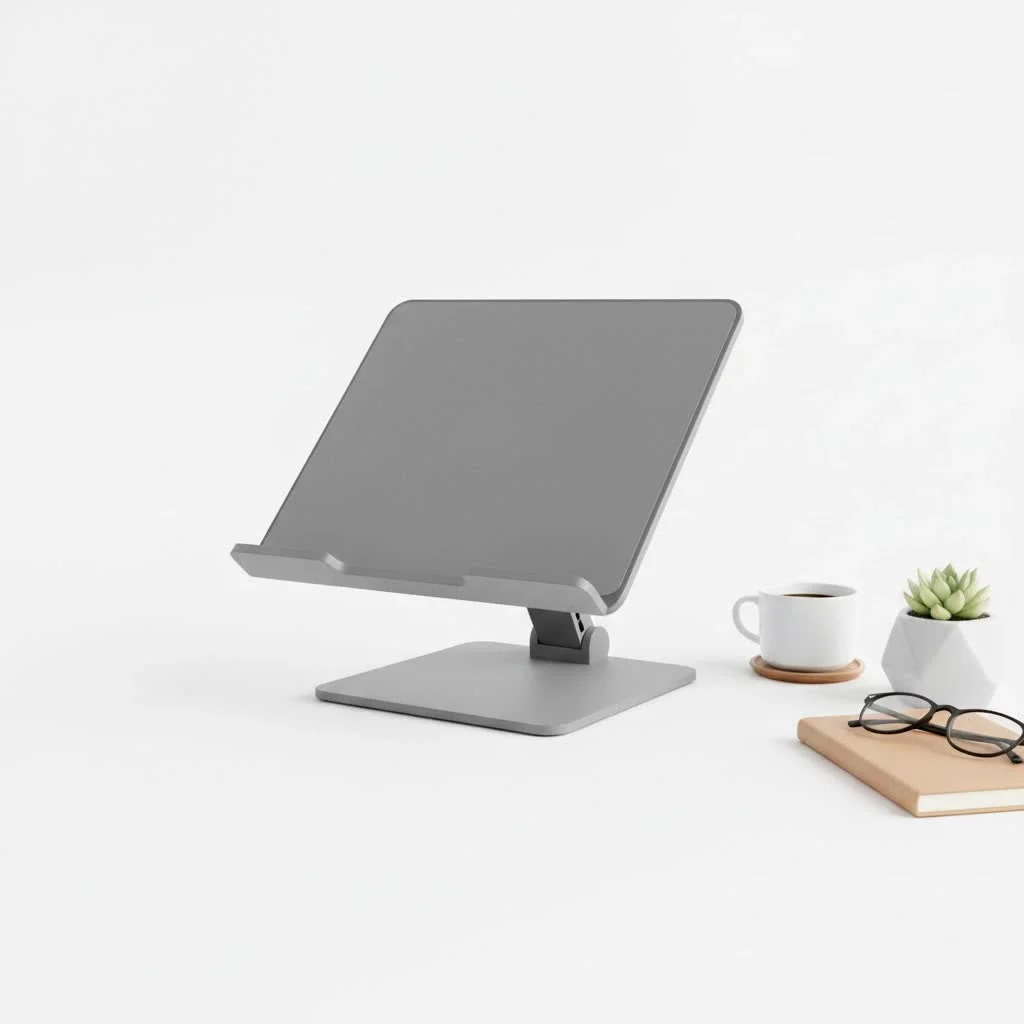
Laptops are designed for portability, not for prolonged use. When a laptop is placed flat on a desk, users are forced to look down, straining their neck and rounding their shoulders. Simultaneously, the attached keyboard forces wrists into an unnatural, upward-angled position. This combination can lead to discomfort, fatigue, and chronic conditions like Repetitive Strain Injury (RSI). For shop curated laptop stands on this site.
Separating your screen from your keyboard is key. By elevating your laptop on a stand and using a separate, external keyboard, you can position both components for optimal ergonomic alignment.
Why You Absolutely Need an External Keyboard with a Laptop Stand
Using a laptop stand without an external keyboard is a common mistake that swaps one ergonomic problem for another. While the stand elevates the screen to the correct eye level, which benefits your neck, it raises the built-in keyboard to a height that forces your wrists and shoulders into an even more awkward and strained posture.
As our trusted ergonomics consultant, Dr. Alistair Finch, often says, “Treating your laptop like a monitor is the goal. You wouldn’t type on your desktop monitor, so why do it when your laptop is on a stand? An external keyboard is not an accessory; it’s a necessity for a healthy workspace.”
The primary benefit of this setup is achieving a neutral posture. Your laptop screen should be at eye level, and your keyboard should be positioned so your arms can rest comfortably, with your elbows at roughly a 90-degree angle and your wrists straight. This is impossible to achieve without separating the two components.
How to Create the Perfect Ergonomic Setup
Setting up your keyboard and laptop stand correctly is simple but crucial for reaping the full benefits. Follow these steps to build a workspace that works for you, not against you.
Step 1: Position Your Laptop Stand
The golden rule is to place the top of your laptop screen at or slightly below your eye level. This prevents you from tilting your head up or down, keeping your neck in a neutral, relaxed position. The laptop should also be about an arm’s length away from you to avoid eye strain.
- Height: Adjust the stand so the top third of the screen aligns with your eyes.
- Distance: Sit back in your chair and extend your arm; your fingertips should comfortably touch the screen.
- Angle: Tilt the screen to minimize glare from windows or overhead lights. A slight tilt of 15-20 degrees is often ideal.
Step 2: Place Your External Keyboard
|
Our Picks for the Best Laptop Stand in 2026
As an Amazon Associate I earn from qualifying purchases.
|
||
| Num | Product | Action |
|---|---|---|
| 1 | BESIGN LS03 Aluminum Laptop Stand, Ergonomic Detachable Computer Stand, Riser Holder Notebook Stand Compatible with Air, Pro, Dell, HP, Lenovo More 10-15.6\" Laptops, Black |

|
| 2 | tounee Telescopic Laptop Stand for Desk with 360° Swivel Base, Sit to Stand, Height Adjustable, Portable Riser Holder for Good Posture, Compatible with MacBook Pro, All Laptops 10-17\"-Gray |
|
| 3 | OMOTON 360° Rotating Laptop Stand Riser for Desk, Ergonomic Foldable Computer Stand Adjustable Height Angles for Collaborative Work, Easy Storage Fit Macbooks,All Laptops up to 16 inches, Silver |
|
| 4 | Adjustable Laptop Stand, Computer Stand with 360 Rotating Base, Ergonomic Laptop Riser Mount for Desk Foldable Protable Computer Desk Fits with MacBook Pro Air (10-16\") - Black |
|
| 5 | Lamicall Adjustable Laptop Stand, Portable Laptop Riser, Aluminum Laptop Stand for Desk Foldable, Ergonomic Computer Notebook Stand Holder for MacBook Air Pro, Dell XPS, HP (10-17.3\'\') - Silver |
|
| 6 | acer Laptop Stand for Desk - with 360 Swivel Base, Rotating Laptop Riser for Desk, Adjustable Computer Stand for Laptops, Ergonomic Riser Holder Foldable, Portable MacBook Pro Air (10-16\") - Silver |
|
| 7 | Adjustable Laptop Stand for Desk, Metal Foldable Laptop Riser Holder, Portable Desktop Book Stands, Ventilated Cooling Computer Notebook Stand Compatible with 10-15.6” Laptops |
|
| 8 | BESIGN LS03 Aluminum Laptop Stand, Ergonomic Detachable Computer Stand, Notebook Riser Compatible with Air, Pro, Dell, HP, Lenovo More 10-15.6\" Laptops, Silver |
|
| 9 | Amazon Basics Sturdy and Portable Ergonomic Laptop Stand for Desk, Height Adjustable Riser with Ventilated Cooling, Foldable, Fits all Laptops up to 17.3 Inch, Silver, 10 x 8.7 x 6 in |
|
| 10 | Laptop Stand for Desk, Adjustable Laptop Riser ABS+Silicone Foldable Portable Notebook Holder, Ventilated Cooling Notebook Mount Computer Stand for 10-15.6” Laptops,Tablets-Black |
|
With your laptop elevated, your external keyboard can be placed in the ideal typing position.
- Position: The keyboard should be flat on your desk, centered with your body. Align the ‘B’ key with your belly button as a general guideline.
- Height: Adjust your chair height so that when you type, your forearms are parallel to the floor and your wrists are straight, not bent up or down.
- Comfort: If you find your wrists are still under pressure, consider adding a padded wrist rest for extra support. Ensure the rest supports the palm of your hand, not your wrist itself, to avoid nerve compression.
Step 3: Add an Ergonomic Mouse
the final piece of the puzzle. Using your laptop’s trackpad while the device is on a stand is impractical and uncomfortable. An external mouse allows your hand and wrist to remain in a more natural position, reducing strain. Place it close to your keyboard to minimize reaching.
Choosing the Right Keyboard and Laptop Stand
The market is filled with options, but not all stands and keyboards are created equal. Here’s what to look for based on our extensive product testing and design experience.
What to Look for in a Laptop Stand
- Adjustability: A good stand should offer multiple height and angle settings to perfectly match your eye level. Fixed-height stands are less versatile.
- Stability: Ensure the stand has a sturdy base and non-slip surfaces to keep your expensive laptop secure.
- Portability: If you work from multiple locations, a lightweight, foldable stand is essential. Look for designs that collapse into a compact form for easy transport.
- Ventilation: Laptops generate heat. A stand with an open design or ventilation slots will improve airflow and prevent your device from overheating, which can enhance performance and longevity.
What to Look for in an External Keyboard
- Ergonomic Design: Some keyboards are split or curved to promote a more natural hand and wrist posture.
- Key Travel: Laptop keyboards often have very little travel, which can be jarring on the fingertips. A keyboard with more satisfying key travel can reduce finger fatigue.
- Size: A compact or “tenkeyless” keyboard (without the number pad) saves desk space and allows you to keep your mouse closer.
- Connectivity: Choose between wired or wireless models. Wireless keyboards offer a cleaner, clutter-free setup, which is great for modern workspaces.
Frequently Asked Questions (FAQ)
Q: Will a laptop stand really help my posture?A: Absolutely. By raising the screen to eye level, a laptop stand prevents you from hunching over. This encourages a more upright posture and reduces strain on your neck, shoulders, and back, which is a key principle of good ergonomics.
Q: Can I use a stack of books instead of a laptop stand?A: While a stack of books can temporarily raise your screen height, it’s not an ideal long-term solution. A proper laptop stand offers better stability, adjustability, and crucial ventilation to prevent your laptop from overheating.
Q: Do I need a stand if I only use my laptop for a couple of hours a day?A: Even short periods of poor posture can contribute to discomfort over time. Investing in a proper setup is beneficial for anyone who regularly uses a laptop. The combination of a keyboard and laptop stand promotes healthy habits that protect your body in the long run.
Q: What is the best setup for a dual-monitor workspace with a laptop?A: In a dual-monitor setup, use the laptop stand to raise your laptop screen to the same height as your external monitor. This creates a seamless, level viewing experience and prevents you from constantly looking up and down between screens.
Your Final Checklist for an Ergonomic Workspace
Transforming your desk doesn’t have to be complicated. By focusing on the fundamentals, you can create a space that enhances comfort and focus.
- [ ] improve your screen: Use a laptop stand to bring the top of the screen to eye level.
- [ ] Separate your keyboard: Use an external keyboard positioned for neutral wrists.
- [ ] Add an external mouse: Keep it close to your keyboard.
- [ ] Adjust your chair: Ensure your feet are flat on the floor and your arms are at a 90-degree angle.
- [ ] Take regular breaks: Stand up, stretch, and walk around every 30-60 minutes.
Investing in a quality keyboard and laptop stand is one of the most effective changes you can make to your workspace. It’s a small adjustment that delivers significant returns in comfort, productivity, and long-term health. At Wweaw, we believe that a well-designed workspace is the foundation for great work. Now go create yours.
Frequently Asked Questions
Will a laptop stand really help improve my posture?
Absolutely. By raising the laptop screen to eye level, a laptop stand prevents you from hunching over, encouraging a more upright posture. This significantly reduces strain on your neck, shoulders, and back, which is a key principle of good ergonomics.
Can I use a stack of books instead of a dedicated laptop stand?
While a stack of books can temporarily raise your screen height, it is not an ideal long-term solution. A proper laptop stand offers superior stability, adjustability for precise height and angle, and crucial ventilation to prevent your laptop from overheating, unlike books.
Do I need a laptop stand if I only use my laptop for a few hours daily?
Even short periods of poor posture can contribute to discomfort and long-term issues. Investing in a proper setup, including a keyboard and laptop stand, is beneficial for anyone who regularly uses a laptop, promoting healthy habits that protect your body over time.
What is the best setup for a dual-monitor workspace with a laptop?
In a dual-monitor setup, use the laptop stand to raise your laptop screen to the same height as your external monitor. This creates a seamless, level viewing experience, preventing you from constantly looking up and down between screens and maintaining ergonomic alignment.
What are the key benefits of using an external keyboard with a laptop stand?
The primary benefit is achieving a neutral posture. An external keyboard allows your arms to rest comfortably with elbows at a 90-degree angle and wrists straight, which is impossible with an integrated laptop keyboard when the screen is elevated for eye-level viewing.
Create the Perfect Ergonomic Laptop Setup
Follow these steps to correctly set up your keyboard and laptop stand for an ergonomic workspace that enhances comfort and productivity.
Place the top of your laptop screen at or slightly below your eye level to keep your neck in a neutral position. Ensure the laptop is about an arm's length away to prevent eye strain. A slight screen tilt of 15-20 degrees can minimize glare.
Position your external keyboard flat on your desk, centered with your body. Adjust your chair height so your forearms are parallel to the floor and your wrists are straight while typing. Consider a padded wrist rest for additional palm support if needed.
Use an external mouse instead of the laptop's trackpad for a more natural hand and wrist position. Place the mouse close to your keyboard to minimize reaching and reduce strain. This completes the ergonomic input setup.
Get our weekly buyer guide
Practical specs, not advice. Unsubscribe anytime.

I’ve been using a laptop stand for a few weeks now, and it’s really helped with my posture. The article mentioned how crucial it is to separate the screen from the keyboard, and I totally agree. My only minor complaint is that some of the stands in the higher price range felt a bit wobbly, but I found a solid one eventually. My productivity has definitely gone up.
This setup has been a game-changer for my chronic shoulder pain. I used to just use my laptop flat on the desk, and I didn’t realize how much I was straining my neck and rounding my shoulders. Elevating my laptop screen to eye level and using a separate keyboard has truly transformed my workspace. I feel so much more comfortable and focused throughout the day.
I got a basic laptop stand to try and fix my wrist pain, but I’m still getting some discomfort. I think I need to upgrade to a better external keyboard for neutral wrist alignment, as mentioned in the guide. The stand itself is fine for elevating the screen, but it didn’t solve all my ergonomic issues on its own. It’s a start, though.
I finally invested in a proper keyboard and laptop stand setup after reading about the benefits for neck and back strain. It’s made such a difference! My old setup had me hunched over all day, but now my screen is at eye level and my wrists feel so much better with the external keyboard. Definitely worth it for anyone spending hours on their laptop.